
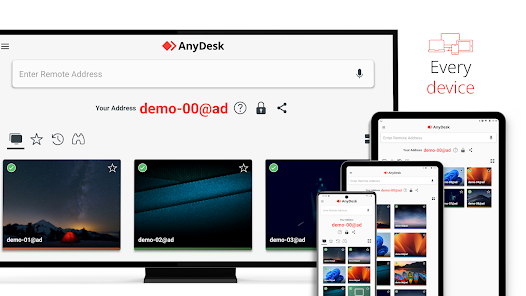
What is AnyDesk?
AnyDesk is a remote control software that enables users to access and control remote computers securely. It is designed to provide fast and reliable remote access to computers and other devices, making it an ideal solution for remote work, technical support, and other applications. With AnyDesk, users can access and control remote computers as if they were sitting in front of them, with features like high-speed data transfer, low latency, and high-quality video transmission.
Main Features of AnyDesk
AnyDesk offers a range of features that make it a powerful remote control solution. Some of its main features include:
- High-speed data transfer: AnyDesk enables fast and secure data transfer between devices, making it ideal for applications that require large file transfers.
- Low latency: AnyDesk’s low latency feature ensures that remote control sessions are responsive and feel like local access.
- High-quality video transmission: AnyDesk’s high-quality video transmission feature ensures that remote control sessions are smooth and clear, with minimal lag or distortion.
- Security: AnyDesk includes a range of security features, including encryption, two-factor authentication, and access controls, to ensure that remote access is secure and compliant with regulatory requirements.
Installation Guide
Step 1: Download and Install AnyDesk
To get started with AnyDesk, download the software from the official website and follow the installation instructions. The installation process is straightforward and typically takes only a few minutes to complete.
Step 2: Configure AnyDesk Settings
Once installed, configure AnyDesk settings to suit your needs. This includes setting up user accounts, configuring security settings, and customizing other preferences.
Step 3: Connect to a Remote Computer
To connect to a remote computer, launch AnyDesk and enter the ID of the remote computer you want to access. You can also use the AnyDesk address book to store and manage connections to frequently accessed remote computers.
Technical Specifications
System Requirements
AnyDesk is compatible with a range of operating systems, including Windows, macOS, and Linux. The system requirements for AnyDesk include:
| Operating System | RAM | Processor |
|---|---|---|
| Windows 10/8/7 | 2 GB | Intel Core 2 Duo or equivalent |
| macOS 10.9 or later | 2 GB | Intel Core 2 Duo or equivalent |
| Linux | 2 GB | Intel Core 2 Duo or equivalent |
Security Features
AnyDesk includes a range of security features to ensure that remote access is secure and compliant with regulatory requirements. These features include:
- Encryption: AnyDesk uses end-to-end encryption to ensure that all data transmitted between devices is secure.
- Two-factor authentication: AnyDesk supports two-factor authentication to provide an additional layer of security for remote access.
- Access controls: AnyDesk includes access controls to restrict access to authorized users and devices.
Pros and Cons
Pros
AnyDesk offers a range of benefits, including:
- Fast and reliable remote access: AnyDesk provides fast and reliable remote access to computers and other devices.
- High-quality video transmission: AnyDesk’s high-quality video transmission feature ensures that remote control sessions are smooth and clear.
- Security: AnyDesk includes a range of security features to ensure that remote access is secure and compliant with regulatory requirements.
Cons
AnyDesk also has some limitations, including:
- Cost: AnyDesk can be expensive, especially for large-scale deployments.
- Complexity: AnyDesk can be complex to configure and manage, especially for users without technical expertise.
FAQ
What is the difference between AnyDesk and other remote control solutions?
AnyDesk is a powerful remote control solution that offers a range of features and benefits that distinguish it from other solutions. Some of the key differences include:
- High-speed data transfer: AnyDesk enables fast and secure data transfer between devices.
- Low latency: AnyDesk’s low latency feature ensures that remote control sessions are responsive and feel like local access.
- High-quality video transmission: AnyDesk’s high-quality video transmission feature ensures that remote control sessions are smooth and clear.
How do I use AnyDesk for remote support?
To use AnyDesk for remote support, follow these steps:
- Download and install AnyDesk on the remote computer.
- Launch AnyDesk and enter the ID of the remote computer.
- Connect to the remote computer and start a remote control session.
- Use the AnyDesk toolbar to access features like file transfer, chat, and video transmission.
Conclusion
AnyDesk is a powerful remote control solution that offers a range of features and benefits for remote work, technical support, and other applications. With its fast and reliable remote access, high-quality video transmission, and robust security features, AnyDesk is an ideal solution for organizations and individuals who need to access and control remote computers securely. By following the installation guide and technical specifications outlined in this article, users can get started with AnyDesk and start experiencing the benefits of remote control for themselves.