
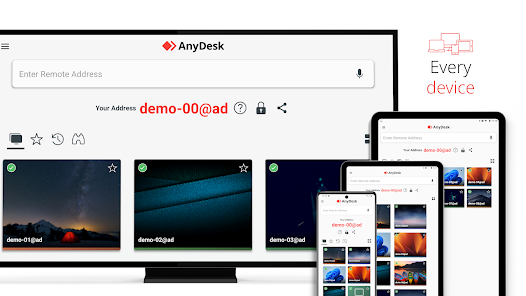
What is AnyDesk?
AnyDesk is a remote control software that allows users to access and control remote computers or devices from anywhere in the world. It is a popular choice among IT professionals, businesses, and individuals who need to access remote computers for various purposes such as technical support, remote work, and online collaboration.
AnyDesk is known for its high-performance capabilities, low latency, and secure connections. It uses a proprietary video codec called DeskRT, which provides high-quality video transmission and low bandwidth usage.
Main Features
Some of the key features of AnyDesk include:
- Remote control and access to remote computers and devices
- High-performance capabilities with low latency
- Secure connections using TLS 1.2 encryption
- Low bandwidth usage with DeskRT video codec
- Multi-platform support for Windows, macOS, Linux, Android, and iOS
Installation Guide
System Requirements
Before installing AnyDesk, ensure that your system meets the following requirements:
- Operating System: Windows 7 or later, macOS 10.7 or later, Linux, Android 4.0 or later, iOS 8.0 or later
- Processor: 1.6 GHz or faster processor
- Memory: 2 GB or more RAM
- Internet Connection: High-speed internet connection
Installation Steps
Follow these steps to install AnyDesk:
- Download the AnyDesk installer from the official website
- Run the installer and follow the prompts to install AnyDesk
- Launch AnyDesk and create an account or log in if you already have one
- Configure AnyDesk settings as desired
AnyDesk Snapshot and Restore Workflow
What is Snapshot and Restore?
AnyDesk’s snapshot and restore feature allows users to create a snapshot of a remote computer’s current state and restore it to that state at a later time. This feature is useful for troubleshooting, testing, and training purposes.
How to Use Snapshot and Restore
Follow these steps to use the snapshot and restore feature:
- Connect to the remote computer using AnyDesk
- Create a snapshot of the current state by clicking on the