
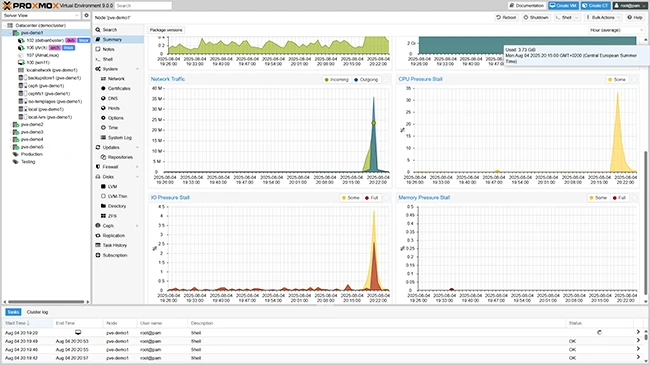
What is Proxmox VE?
Proxmox VE (Virtual Environment) is an open-source virtualization platform that enables users to create, manage, and deploy virtual machines and containers. It is a comprehensive solution that combines the benefits of virtualization and containerization, providing a robust and scalable environment for running various workloads.
Main Features of Proxmox VE
Some of the key features of Proxmox VE include:
- Virtual machine management: Proxmox VE allows users to create, clone, and manage virtual machines, as well as perform live migrations and snapshots.
- Containerization: Proxmox VE supports containerization using Linux Containers (LXC) and Docker, enabling users to run multiple isolated environments on a single host.
- High availability: Proxmox VE provides high availability features, such as clustering, live migration, and automatic failover, to ensure maximum uptime and minimal downtime.
- Storage management: Proxmox VE provides a centralized storage management system, allowing users to manage storage resources, including local and remote storage devices.
- Networking: Proxmox VE provides a comprehensive networking system, enabling users to manage network interfaces, VLANs, and firewall rules.
Installation Guide
Prerequisites
Before installing Proxmox VE, ensure that your system meets the following requirements:
- 64-bit CPU with virtualization support (Intel VT-x or AMD-V)
- At least 4 GB of RAM (8 GB or more recommended)
- At least 20 GB of free disk space
- A supported operating system (Debian or Ubuntu)
Step-by-Step Installation
Follow these steps to install Proxmox VE:
- Download the Proxmox VE ISO file from the official website.
- Create a bootable USB drive or CD/DVD using the ISO file.
- Boot your system from the USB drive or CD/DVD.
- Follow the on-screen instructions to complete the installation.
Proxmox VE Snapshot and Restore Workflow
Creating Snapshots
To create a snapshot in Proxmox VE, follow these steps:
- Log in to the Proxmox VE web interface.
- Select the virtual machine or container you want to snapshot.
- Click on the “Snapshot” button.
- Enter a description for the snapshot and click “Create”.
Restoring Snapshots
To restore a snapshot in Proxmox VE, follow these steps:
- Log in to the Proxmox VE web interface.
- Select the virtual machine or container you want to restore.
- Click on the “Snapshot” button.
- Select the snapshot you want to restore and click “Restore”.
Proxmox VE vs Alternatives
Comparison with VMware
Proxmox VE and VMware are both popular virtualization platforms, but they have some key differences:
| Feature | Proxmox VE | VMware |
|---|---|---|
| Licensing | Open-source | Proprietary |
| Cost | Free | Commercial |
| Scalability | Highly scalable | Highly scalable |
| Management | Web-based interface | Web-based interface |
FAQ
Q: What is the difference between Proxmox VE and Proxmox Backup Server?
A: Proxmox VE is a virtualization platform, while Proxmox Backup Server is a backup and restore solution designed specifically for Proxmox VE.
Q: Can I use Proxmox VE with other virtualization platforms?
A: Yes, Proxmox VE supports integration with other virtualization platforms, such as VMware and Hyper-V.
Q: Is Proxmox VE secure?
A: Yes, Proxmox VE has a strong focus on security, with features such as encryption, firewalls, and access controls.