
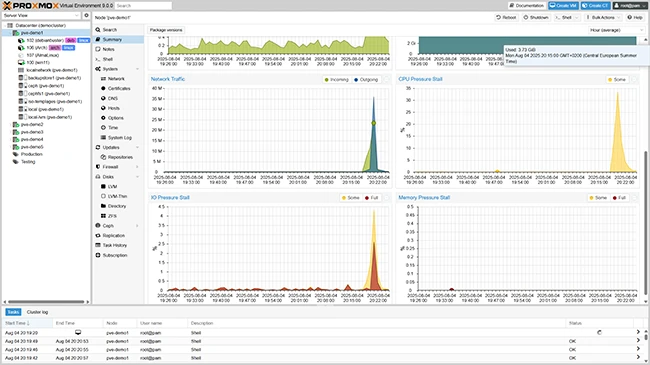
What is Proxmox VE?
Proxmox VE is a comprehensive open-source platform for virtualization and containerization, providing a robust and scalable solution for managing virtual machines (VMs) and containers. Developed by Proxmox Server Solutions GmbH, Proxmox VE is designed to be highly flexible and adaptable, making it an ideal choice for a wide range of use cases, from small-scale deployments to large-scale enterprise environments.
Main Features
Proxmox VE boasts an impressive array of features that set it apart from other virtualization and containerization solutions. Some of the key features include:
- Support for multiple virtualization technologies, including KVM and LXC
- Containerization support using LXC and Docker
- High availability and clustering capabilities
- Integrated backup and restore functionality
- Support for multiple storage options, including local storage, NAS, and SAN
Installation Guide
System Requirements
Before installing Proxmox VE, it’s essential to ensure that your system meets the minimum requirements. These include:
- 64-bit CPU with virtualization extensions (Intel VT-x or AMD-V)
- At least 4 GB of RAM (8 GB or more recommended)
- At least 20 GB of free disk space
- Network interface card (NIC) with a valid IP address
Download and Installation
To install Proxmox VE, follow these steps:
- Download the Proxmox VE ISO file from the official Proxmox website
- Create a bootable USB drive using the ISO file
- Insert the USB drive into your server and boot from it
- Follow the on-screen instructions to complete the installation process
Proxmox VE Snapshot and Restore Workflow
Creating Snapshots
Proxmox VE provides a robust snapshot feature that allows you to create point-in-time copies of your VMs and containers. To create a snapshot, follow these steps:
- Log in to the Proxmox VE web interface
- Select the VM or container you want to snapshot
- Click on the